iOS Installation Guide
Due to distribution constraints, the iOS version is not available on the App Store. You can still install it via jailbreaking or sideloading. Below is a sideloading guide using Sideloadly.
1. Download the IPA file to a Windows PC or a macOS Mac.

2. Install Sideloadly (Windows/macOS):
3. Make sure you have the Windows versions of iTunes and iCloud installed. If you installed the Microsoft Store version, uninstall it and use Apple’s official installers:
4. Connect your iOS device via USB (or via iTunes “Wi‑Fi Sync”), trust the computer on the device, then open Sideloadly and follow the steps:
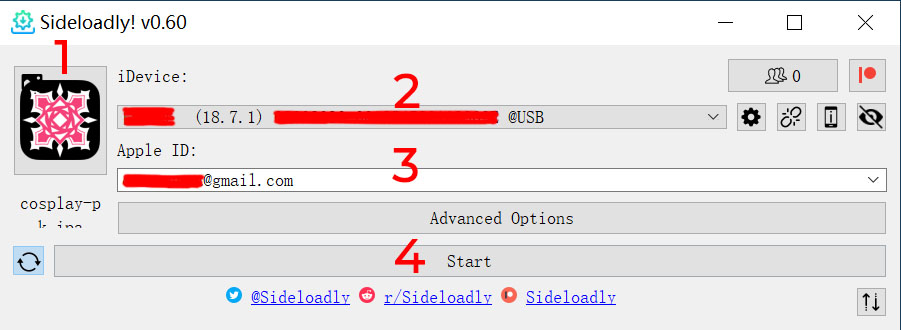
- ◆Step 1: Click the IPA icon and select the downloaded cosplay-pk.ipa.
- ◆Step 2: Confirm your device is selected under iDevice.
- ◆Step 3: Enter your Apple ID (the one signed in on the device).
- ◆Step 4: Click Start.
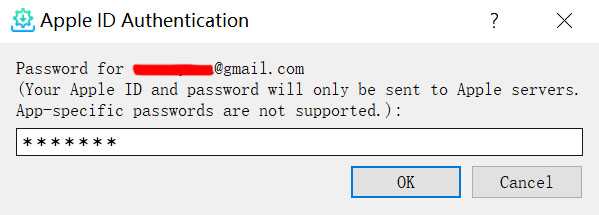
5. After clicking Start, enter your Apple ID password (see image).
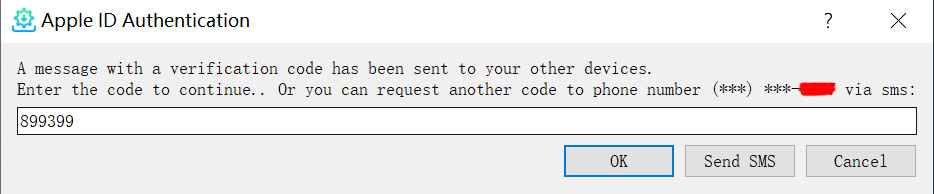
After verification, you’ll see another dialog. Enter the verification code from your iOS device to begin signing and installation.
6. You can track progress in Sideloadly’s status area. If the app shows “Untrusted Developer”, go to Settings → General → VPN & Device Management and trust the profile under Developer App.
7. Personal signing expires after 7 days. To renew:
- ◆Option 1: Re-run step 4 after it expires.
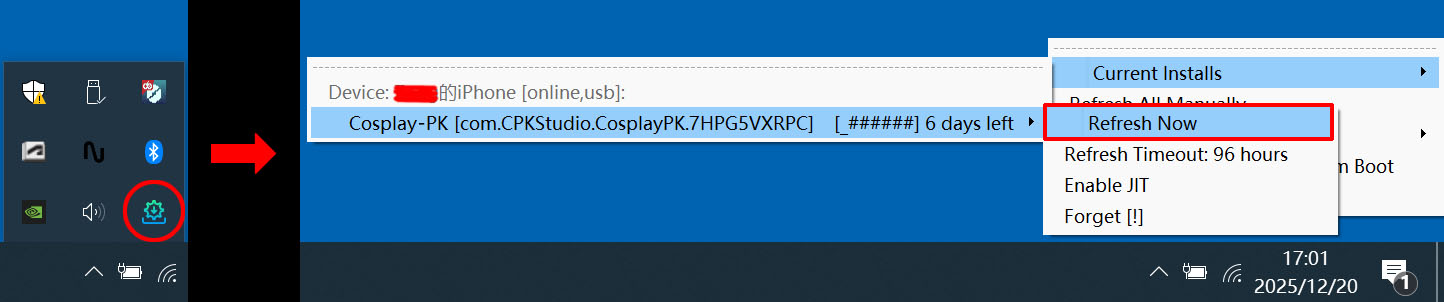
- ◆Option 2: Before or after expiration, connect your device and in Sideloadly tray menu choose “Refresh All Manually” to renew all sideloaded apps for 7 days.
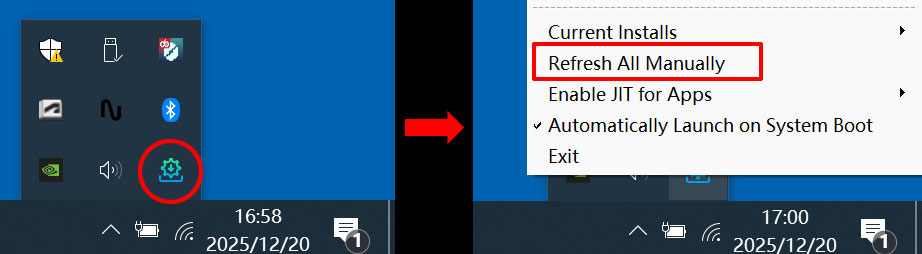
- ◆Option 3: Use “Refresh Now” to renew only the selected app.
Note: Personal signing typically supports up to 3 sideloaded apps per device. If you exceed this, uninstall one existing sideloaded app.